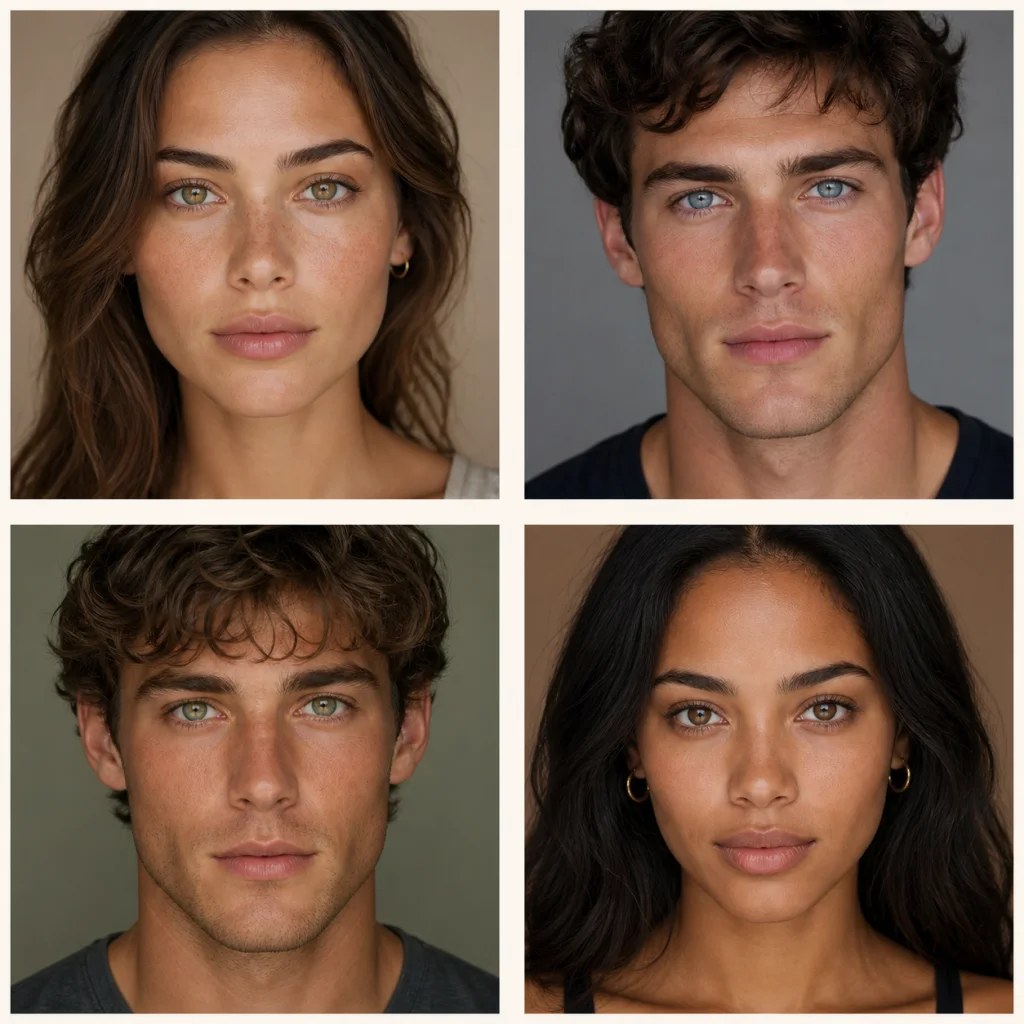
01Hazel
Warm Hazel
Gold and olive undertones create a subtle change that reacts naturally to warm portrait lighting.
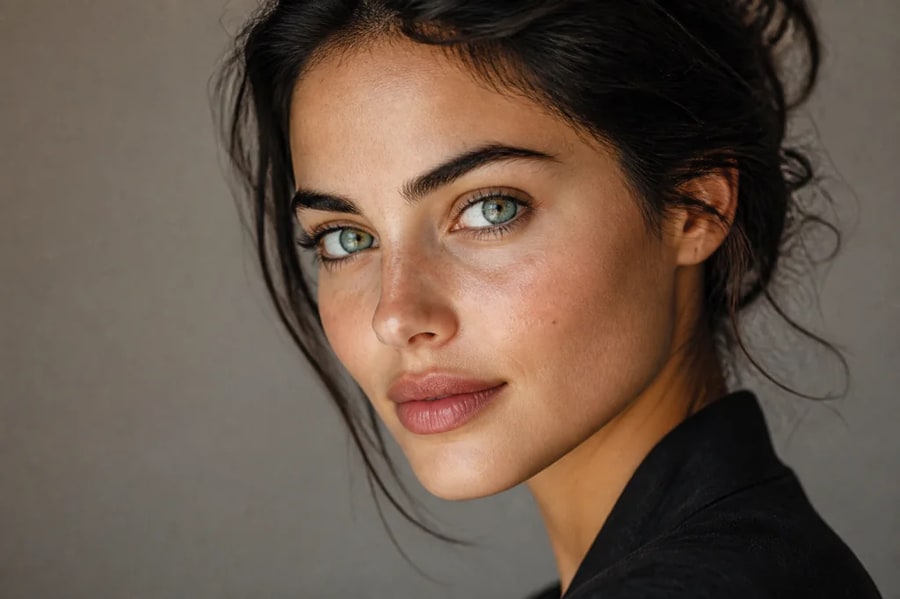
Natural iris texture · preserved identity · many color directions
Preview blue, green, hazel, gray, amber, or fantasy eye colors in your photo. Keep natural iris detail, catchlights, skin tone, and facial identity while changing only the eye color.
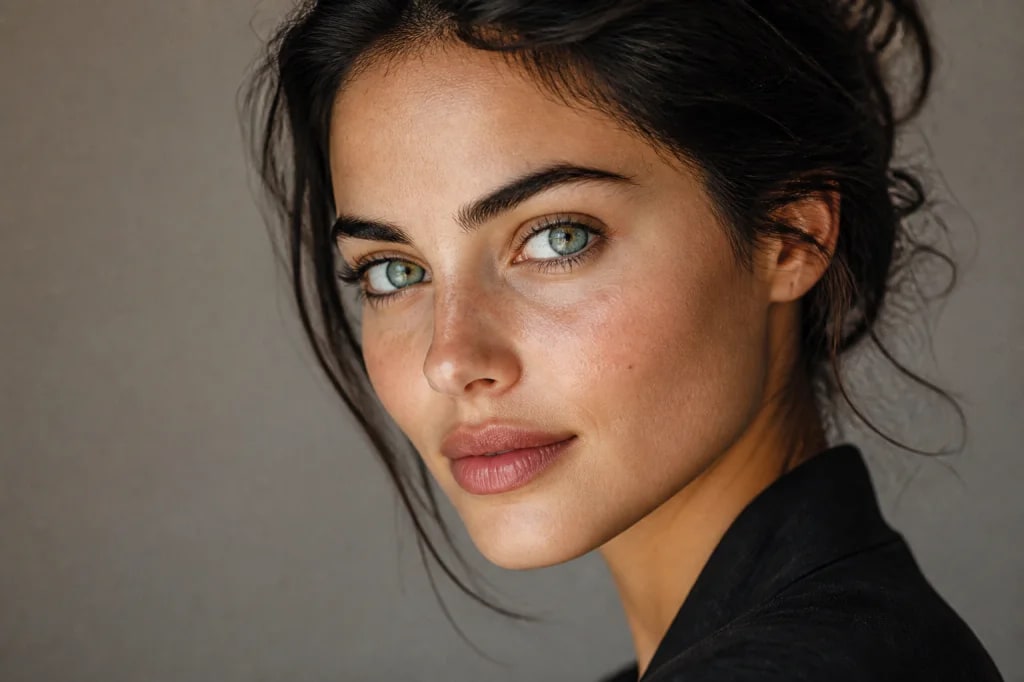
Natural iris texture · preserved identity · many color directions
01 / Visual directions
Eye color changes feel convincing when the iris keeps its radial texture and the new hue works with the original light—not when it becomes a flat painted circle.
Gold and olive undertones create a subtle change that reacts naturally to warm portrait lighting.
A cool blue iris keeps darker limbal rings and soft catchlights for a believable result.
Muted green with slight amber variation avoids the synthetic look of a single saturated hue.
Low-saturation gray brightens the eyes while preserving pupils, reflections, and surrounding skin.
02 / Why it works
Target the iris color while preserving facial structure, skin texture, eyelashes, eyebrows, and expression.
Keep catchlights, pupils, limbal rings, and tonal variation so the new color belongs in the original photo.
Try realistic shades or creative fantasy colors before choosing contacts, styling a character, or building a visual concept.
Specify hue, saturation, brightness, a darker outer ring, subtle flecks, or different colors for each eye.
03 / Three-step workflow
Keep the source clear, describe one strong direction, then refine the output with deliberate changes.
Choose an image where both irises are visible and not hidden by heavy shadow or glare.
Describe the hue, intensity, undertone, and whether you want a natural or fantasy result.
Generate, compare catchlights and edges, then refine saturation before downloading.
04 / Questions
It changes the visible color of the iris while aiming to preserve the pupil, reflections, eyelashes, skin, expression, and overall identity. You can request natural or imaginative colors.
Yes. Ask for a specific blue such as icy blue, steel blue, or muted blue-gray. For realism, request preserved catchlights, a darker limbal ring, and subtle tonal variation within the iris.
Use a sharp, well-lit portrait where the eyes are open and the irises are large enough to see. Avoid very distant faces, motion blur, tinted glasses, or strong reflections across the eyes.
Yes. Describe the color for the left and right eye separately and ask to preserve the same lighting and natural iris texture in both. This can create realistic heterochromia or a fantasy effect.
Tell Filtrix to change only the iris color and preserve the face, skin tone, makeup, expression, hair, and background. A focused instruction helps keep the edit localized.
No. It is a visual preview for creative planning. Contact lenses are medical devices in many places, so consult a qualified eye-care professional for fitting, safety, and prescription guidance.
05 / Keep exploring
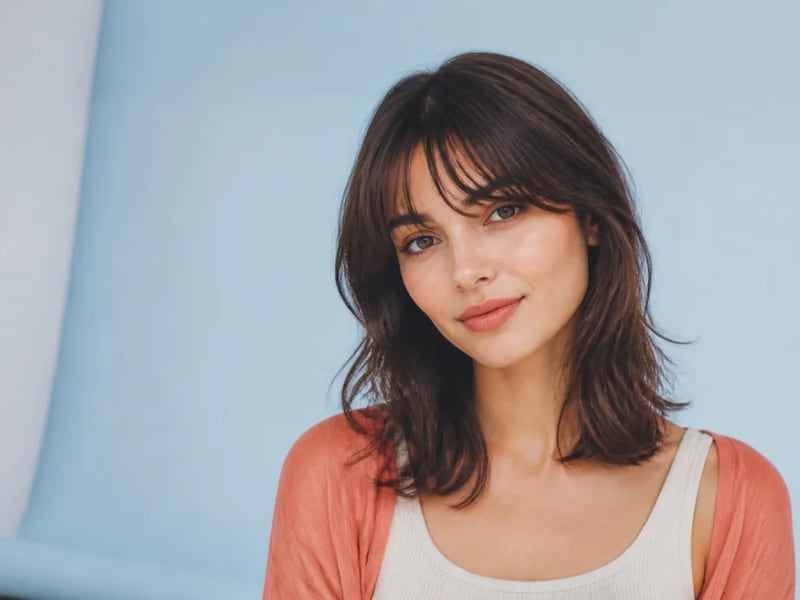
See how curtain, blunt, wispy, side-swept, or micro bangs could frame your face. Preview multiple fringe styles on one portrait while preserving your identity, hair color, and overall haircut.
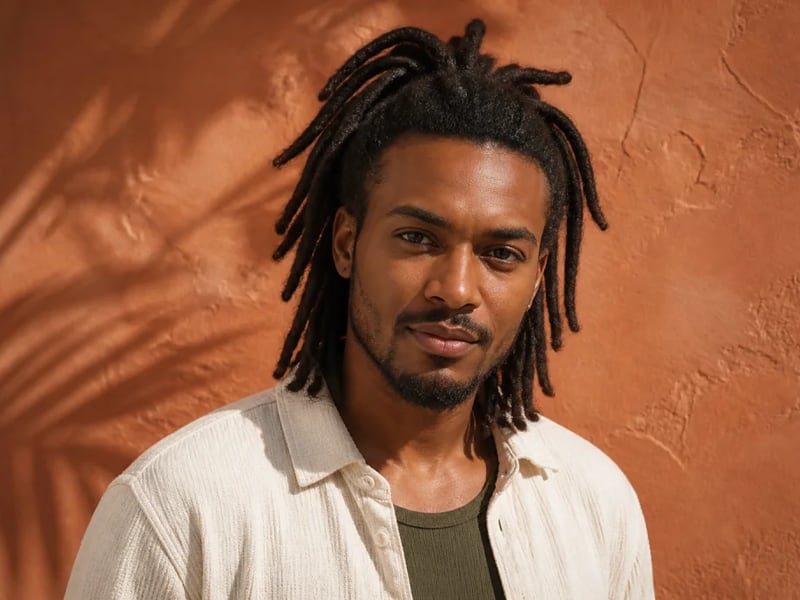
Preview loc hairstyles on your photo before changing your hair. Compare starter locs, shoulder-length locs, updos, and longer looks while preserving your face, skin tone, and natural hairline.
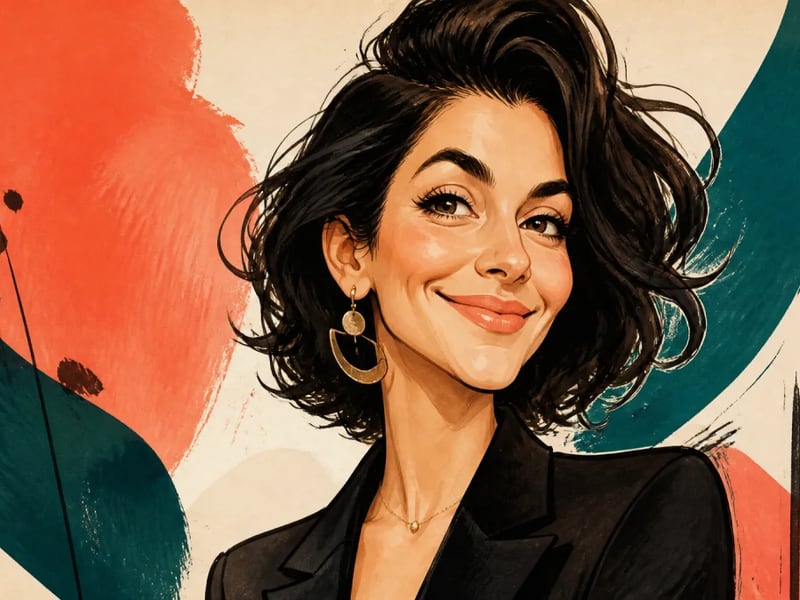
Turn a portrait into a lively illustrated caricature while keeping the person recognizable. Guide the expression, exaggeration, ink style, and color palette for gifts, profiles, and editorial artwork.
Upload a clear portrait and explore natural or imaginative iris colors while keeping the rest of the image familiar.
Start creating