Automatic subject isolation
Separate a product, person, pet, or object from a distracting scene without tracing every edge by hand.
Remove distracting backgrounds from product, portrait, and object photos. Keep the subject readable and create a clean starting point for listings, designs, and new scenes.
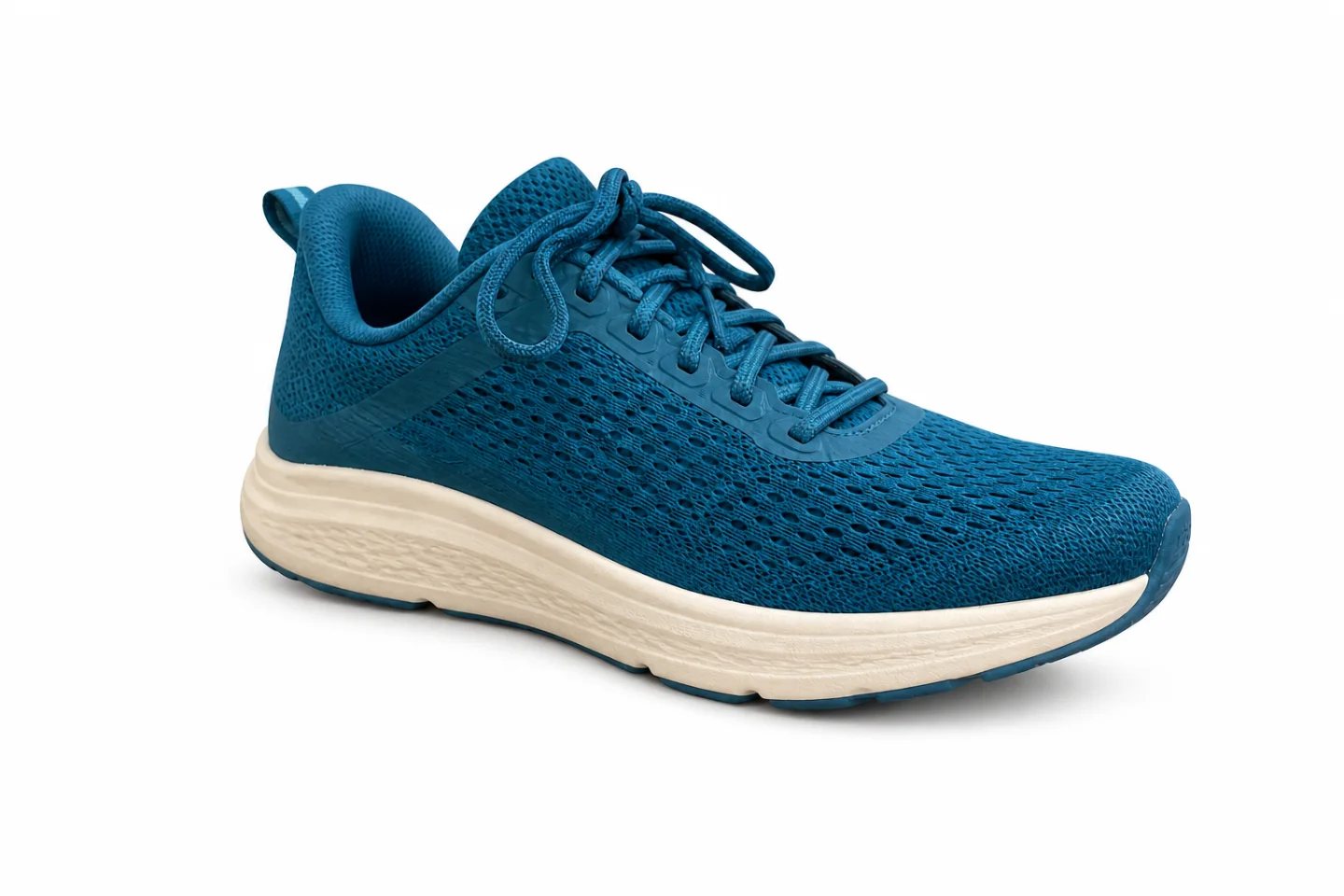
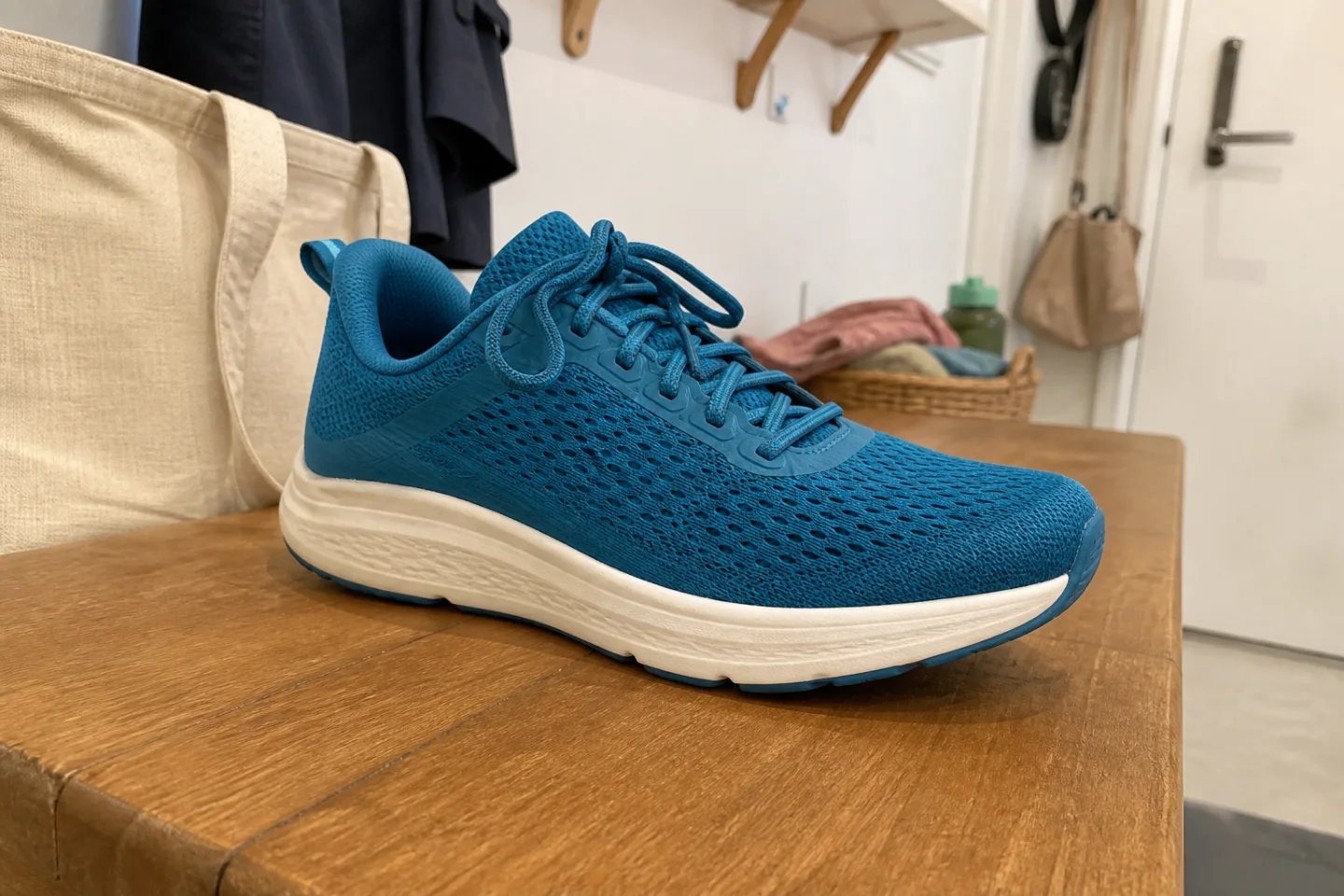
Background removal is most valuable when the cutout survives real use: product grids, marketplace white backgrounds, profile graphics, presentations, and campaign compositions.
Separate a product, person, pet, or object from a distracting scene without tracing every edge by hand.
Keep laces, straps, hair, fur, handles, and narrow product edges readable against the new background.
Place the isolated subject on white, a brand color, a generated scene, an ad layout, or a marketplace template.
The source includes a bench, tote, clothes, shelves, and an entryway. The result clears the environment while preserving the shoe's mesh, laces, sole, orientation, and natural grounding.
Review: Zoom into fine edges and transparent or reflective areas before using the cutout in a marketplace listing or paid campaign.
Start with a visible subject and finish with an asset that can move between channels.
Choose an image where the main subject is in focus and visually separate from the surrounding scene.
Let AI isolate the subject, then review narrow details such as hair, laces, straps, handles, and product gaps.
Keep the result clean, place it on white, or move it into a branded or generated background.
Create consistent product cutouts and white-background images for catalog grids.
Separate a person from a casual setting before adding a professional background.
Layer products or people into banners, stories, thumbnails, and promotional layouts.
Clear solid or distracting backgrounds before placing a mark or object into a new design.
Fine product features need explicit attention when the original background is complex.
Open Custom ModeRemove the entire entryway, bench, tote, clothing, shelves, and door. Preserve the exact teal running shoe, lace arrangement, mesh openings, cream sole, camera angle, position, and color. Produce clean edges with no halo and keep one soft contact shadow.
An AI background remover detects the main subject of a photo, separates it from the surrounding scene, and clears the background so the subject can be reused elsewhere.
Yes. It is useful for catalog grids, marketplace requirements, product detail pages, comparison graphics, ads, and creating a reusable product cutout.
AI can preserve many fine edges, but complex hair, fur, mesh, transparent materials, and thin straps should always be inspected at full size.
Yes. Use the clean subject on white, a solid brand color, a supplied image, or an AI-generated studio or lifestyle scene.
Use a sharp, high-resolution image with good contrast between the subject and background, complete visible edges, and minimal overlap from other objects.
Upload a product, portrait, or object photo and prepare a cleaner asset for the next design.
Remove the background