Recover breathing room
Extend cramped edges around a product, portrait, interior, or landscape without stretching the original pixels.
Uncrop a photo and generate believable content beyond its borders. Recover breathing room, reveal missing context, and adapt one image for wider or taller layouts.
AI image expansion is not ordinary resizing. It creates new visual content around the original frame while continuing perspective, light, texture, and scene logic.
Extend cramped edges around a product, portrait, interior, or landscape without stretching the original pixels.
Turn a tight source into a wider banner, taller story, square post, presentation cover, or marketplace composition.
Match background texture, lines, depth, light direction, shadows, and visual style across the new canvas.
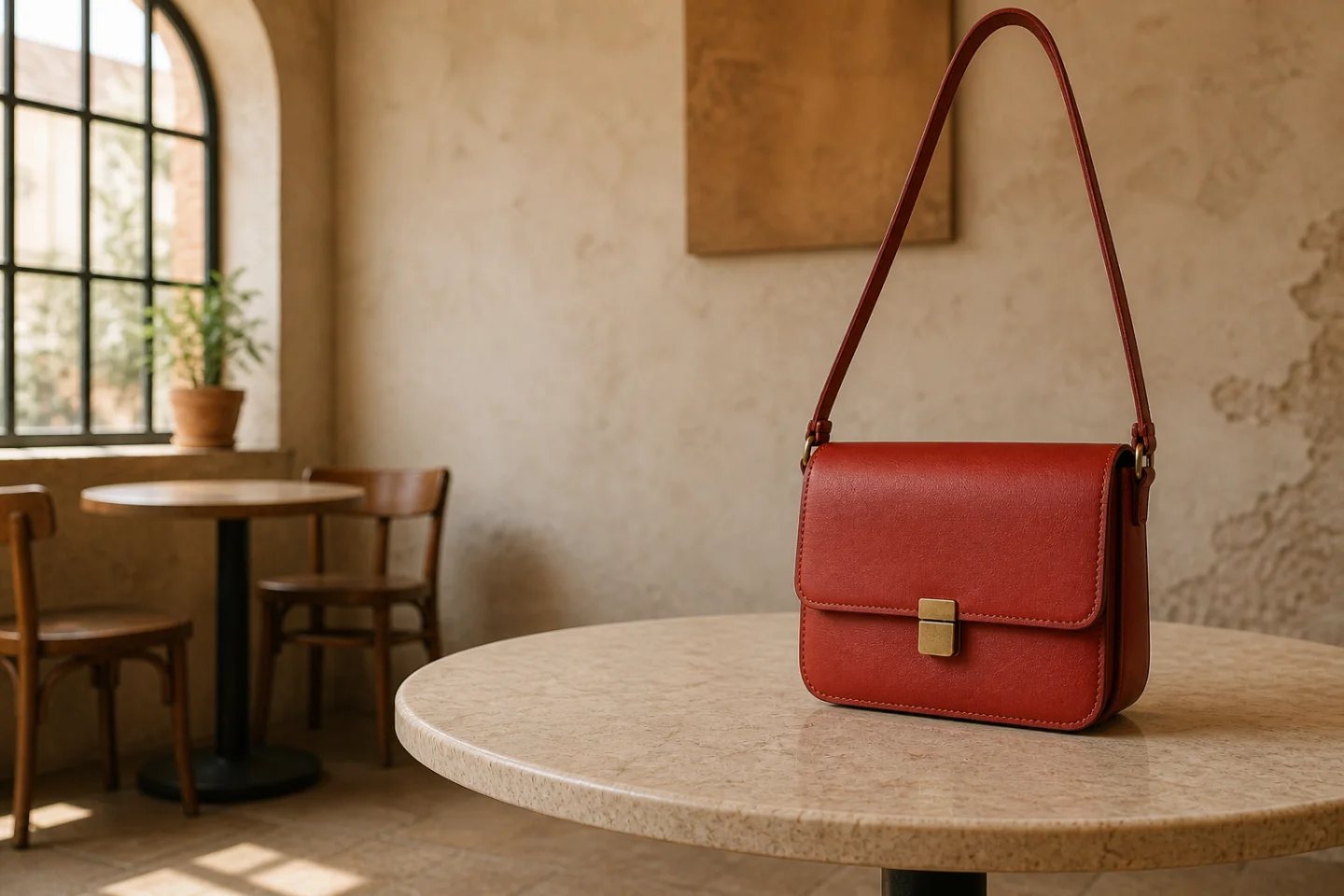
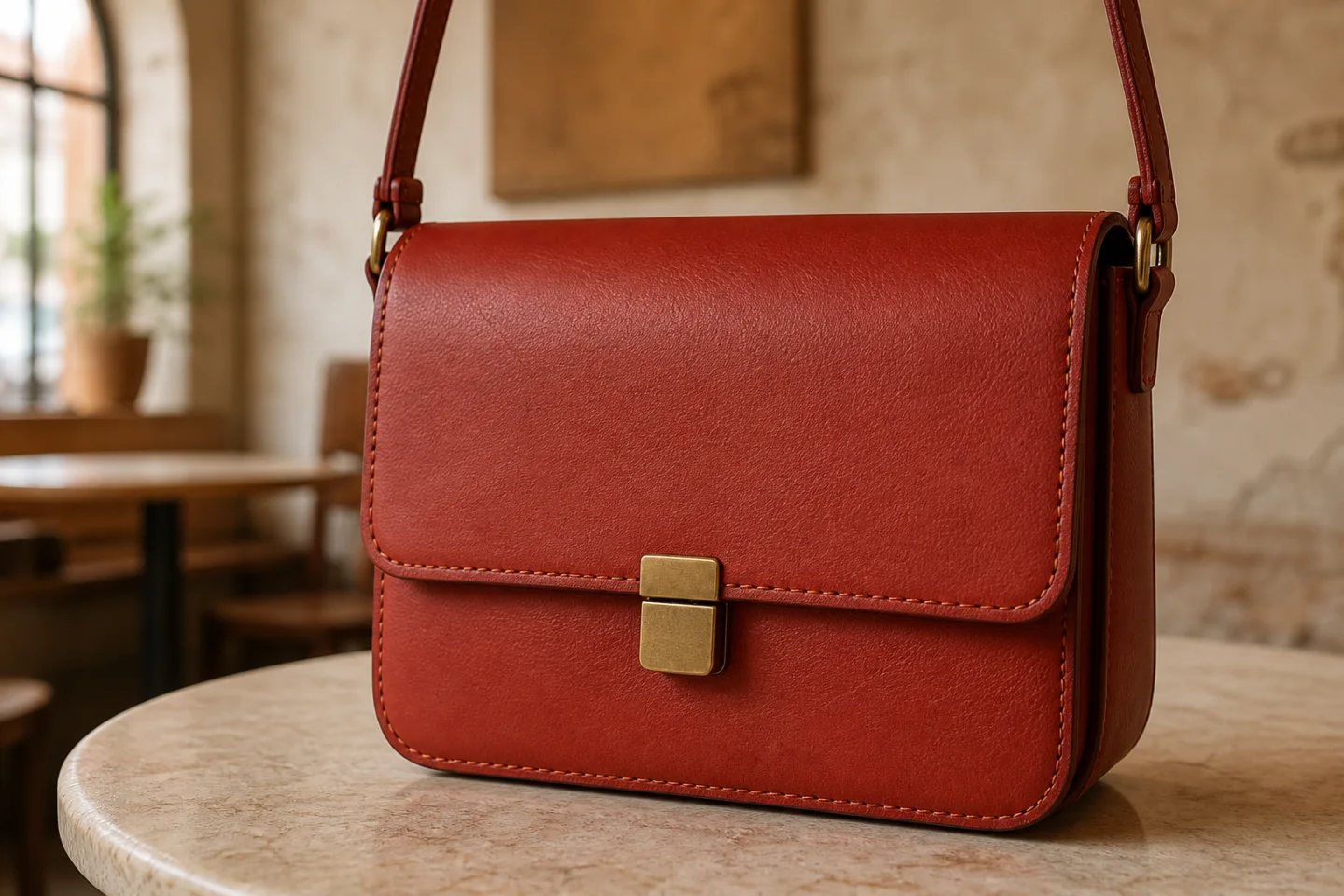
The original photo leaves almost no room around the bag and cuts the strap at the top. The expanded result reveals the full strap, table, café environment, and usable copy space while keeping the product recognizable.
Review: Inspect joins near the original edge, repeated structures, product proportions, straight lines, reflections, and the logic of newly generated space.
Decide why you need more canvas before asking the model to invent it.
Start with the highest-resolution source and identify the subject, horizon, architecture, or product details that anchor the scene.
State the desired direction, amount of space, aspect ratio, negative-space location, and scene elements that should continue.
Review perspective, lighting, texture, anatomy, product geometry, and the boundary between original and generated content.
Create copy space around tightly photographed products for store headers and campaign modules.
Adapt landscape, square, and portrait compositions without cutting away the main subject.
Recover headroom, shoulders, surroundings, or full-body context when the original frame is too tight.
Extend backgrounds to make room for titles, interface overlays, and different crop-safe zones.
A useful expansion brief defines both composition and continuity.
Open Custom ModePull the camera back and extend the scene to reveal the full shoulder strap, more of the round pale stone table, and the warm café around it. Create generous negative space on the left. Preserve the exact rust-red bag, flap, stitching, brass clasp, leather grain, perspective, and light.
An AI image extender generates new content beyond the existing borders of a photo. It can uncrop tight framing, add negative space, and adapt an image to another aspect ratio.
No. Resizing scales or stretches existing pixels. AI expansion creates new surrounding content that attempts to continue the scene, perspective, lighting, and texture.
Yes. Specify where you need negative space and ask the model to preserve product shape, color, materials, label details, camera angle, and grounded shadows.
It generates a plausible interpretation of missing content; it does not recover factual pixels that were never captured. Treat the result as generated creative and review it accordingly.
Crowds, text, faces near an edge, intricate architecture, repeated patterns, mirrors, and products with precise labels or complex geometry may require more careful review.
Expand the image, protect the subject, and create room for the placement you need.
Uncrop an image